HorizontalScrollViewを用いた簡単なAndroidサンプルアプリ
※はじめに
この記事はAndroidアプリの開発が、初心者であるという方のための記事です。
そのため、なるべく複雑な説明は避け、コピー&ペイストですぐに動くものをご紹介します。
JavaやAndroidを理解されている方で細かい説明が必要な方は、当ブログ内の連載記事である「Android Tips」をご覧ください。
今回はHorizontalScrollViewのサンプルアプリです。
アプリ実行図
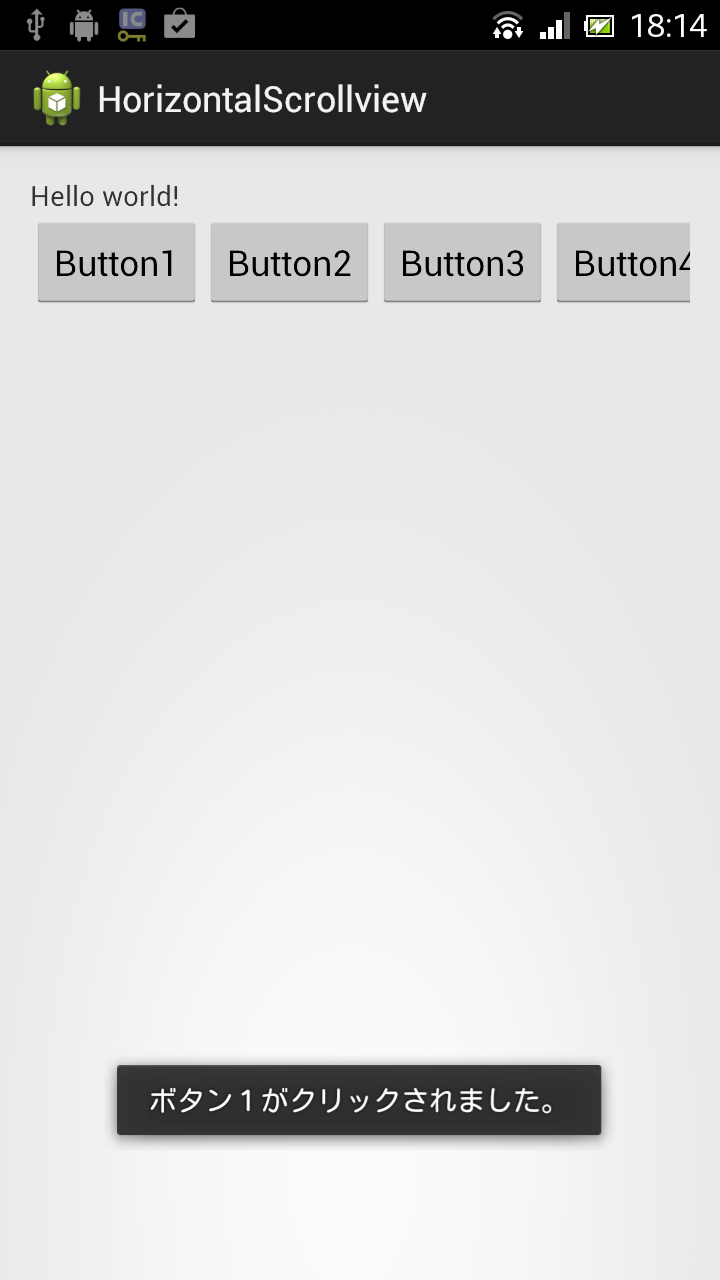
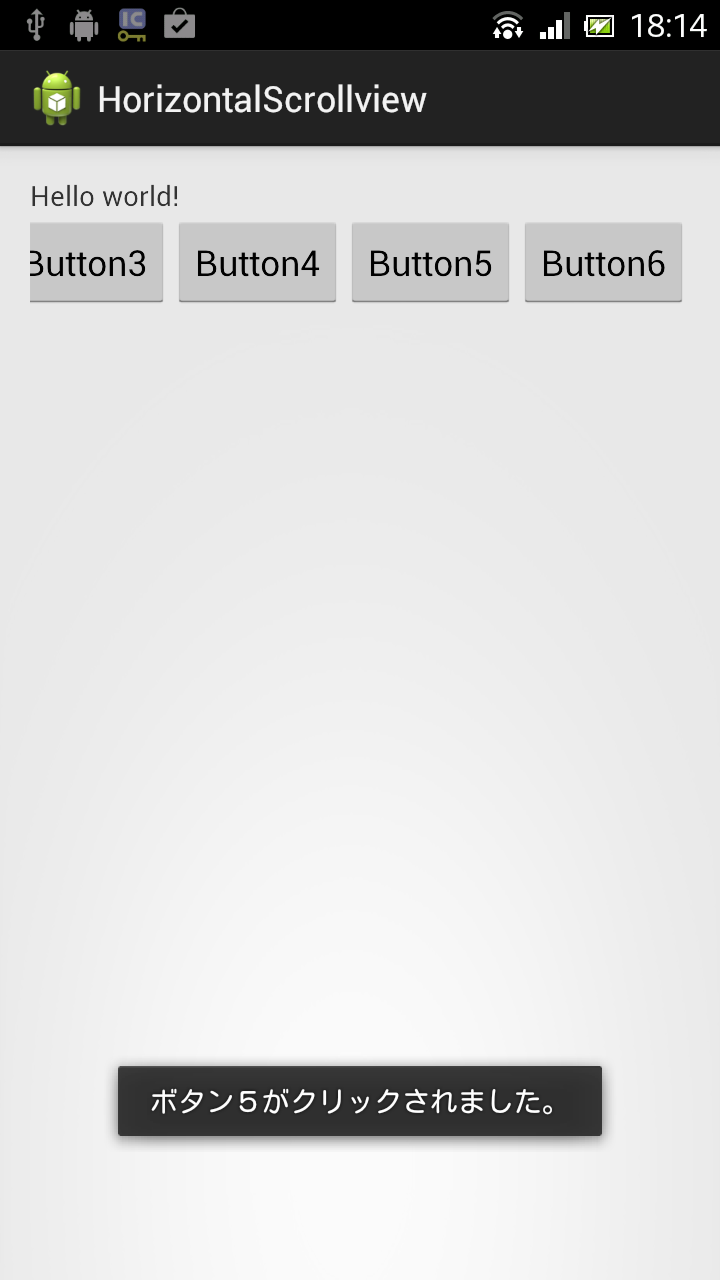
サンプルコード
- activity_main.xml
<LinearLayout xmlns:android="http://schemas.android.com/apk/res/android"
    xmlns:tools="http://schemas.android.com/tools"
    android:layout_width="match_parent"
    android:layout_height="match_parent"
    android:orientation="vertical"
    android:padding="15dp"
    tools:context=".MainActivity" >

    <TextView
        android:layout_width="wrap_content"
        android:layout_height="wrap_content"
        android:text="@string/hello_world" />

    <HorizontalScrollView
        android:id="@+id/horizontalScrollView1"
        android:layout_width="match_parent"
        android:layout_height="match_parent" >

        <LinearLayout
            android:layout_width="match_parent"
            android:layout_height="match_parent"
            android:orientation="horizontal" >

            <Button
                android:id="@+id/button1"
                android:layout_width="wrap_content"
                android:layout_height="wrap_content"
                android:text="Button1" />

            <Button
                android:id="@+id/button2"
                android:layout_width="wrap_content"
                android:layout_height="wrap_content"
                android:text="Button2" />

            <Button
                android:id="@+id/button3"
                android:layout_width="wrap_content"
                android:layout_height="wrap_content"
                android:text="Button3" />

            <Button
                android:id="@+id/button4"
                android:layout_width="wrap_content"
                android:layout_height="wrap_content"
                android:text="Button4" />

            <Button
                android:id="@+id/button5"
                android:layout_width="wrap_content"
                android:layout_height="wrap_content"
                android:text="Button5" />

            <Button
                android:id="@+id/button6"
                android:layout_width="wrap_content"
                android:layout_height="wrap_content"
                android:text="Button6" />
        </LinearLayout>
    </HorizontalScrollView>

</LinearLayout>
package com.example.horizontalscrollview;

import android.app.Activity;
import android.os.Bundle;
import android.view.View;
import android.view.View.OnClickListener;
import android.widget.Button;
import android.widget.Toast;

public class MainActivity extends Activity implements OnClickListener {

	@Override
	protected void onCreate(Bundle savedInstanceState) {
		super.onCreate(savedInstanceState);
		setContentView(R.layout.activity_main);

		Button b1 = (Button) findViewById(R.id.button1);
		Button b2 = (Button) findViewById(R.id.button2);
		Button b3 = (Button) findViewById(R.id.button3);
		Button b4 = (Button) findViewById(R.id.button4);
		Button b5 = (Button) findViewById(R.id.button5);
		Button b6 = (Button) findViewById(R.id.button6);

		b1.setOnClickListener(this);
		b2.setOnClickListener(this);
		b3.setOnClickListener(this);
		b4.setOnClickListener(this);
		b5.setOnClickListener(this);
		b6.setOnClickListener(this);
	}

	@Override
	public void onClick(View v) {

		String str = "エラー";

		switch (v.getId()) {
		case R.id.button1:
			str = "ボタン1";
			break;

		case R.id.button2:
			str = "ボタン2";
			break;

		case R.id.button3:
			str = "ボタン3";
			break;

		case R.id.button4:
			str = "ボタン4";
			break;

		case R.id.button5:
			str = "ボタン5";
			break;

		case R.id.button6:
			str = "ボタン6";
			break;

		default:
			break;

		}

		Toast.makeText(this, str + "がクリックされました。", Toast.LENGTH_SHORT).show();

	}

}
以上でOKです。